
Browse your Events.
Open Events to see the latest detection and previous moments. Each card names its camera, detection and time. Open the event you want to explore.
YOUR SPARE PHONE. ON DUTY.
Choose a camera. Open a detection. See its photo, play its clip, find its saved location, or check the camera live.
Saved events on Scout & Guardian · alert areas on Guardian
START WITH THE RIGHT CAMERA
See recent detections across your account, then narrow in on the place you want to check.
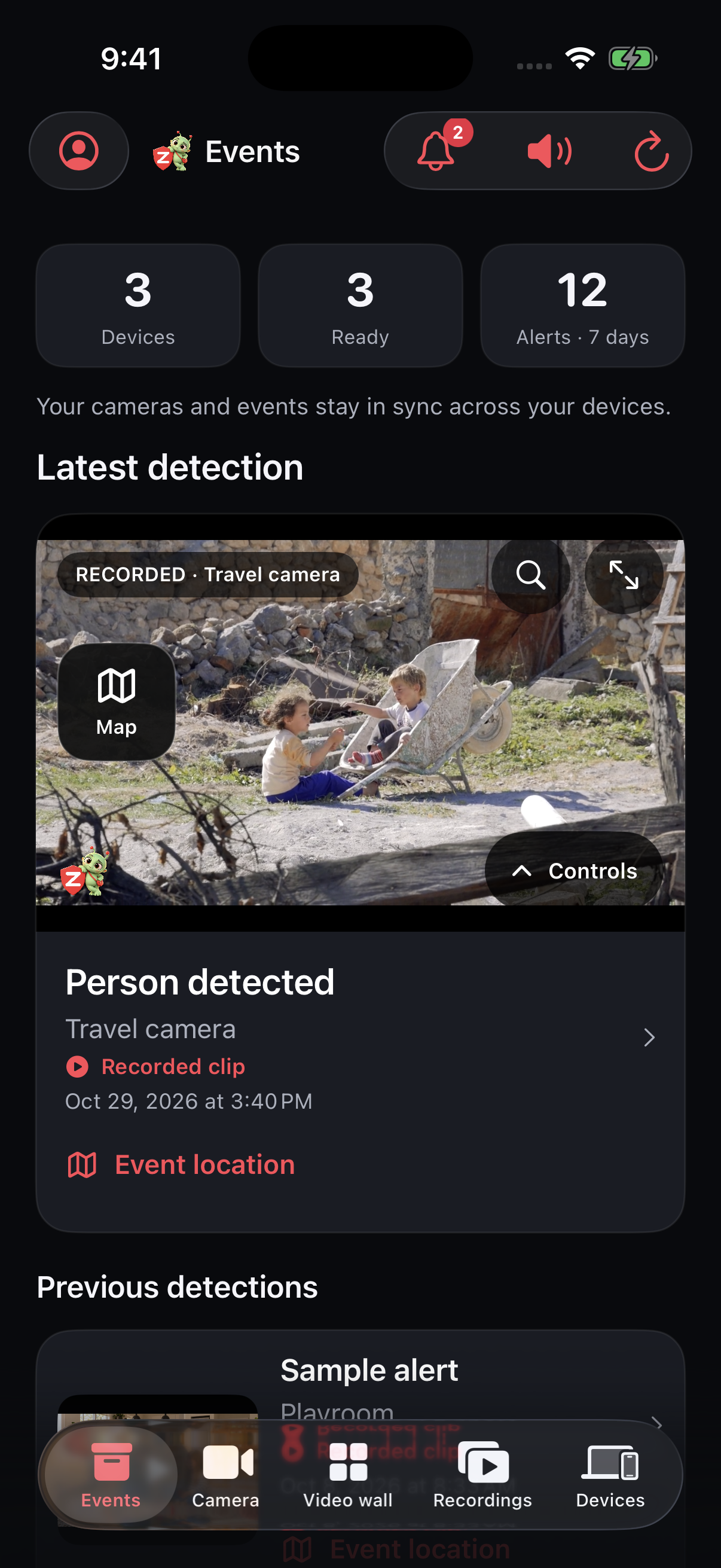
Open Events to see the latest detection and previous moments. Each card names its camera, detection and time. Open the event you want to explore.
In the app, open Devices and choose the camera. Review its recent events, then use Review all device events when older history is available.
The signed-in web dashboard lets you filter recent detections by Camera, Detection and When. Clear the filters to see your cameras together again. Open a camera’s history to look further back.
Open your dashboard ↗ONE EVENT. MORE WAYS TO SEE IT.
Choose an example below to explore a real app screen. Media availability depends on what the camera saved.
Start in Fit to see the whole image. Enlarge it for a closer look, or switch to Fill when you prefer a closer crop.
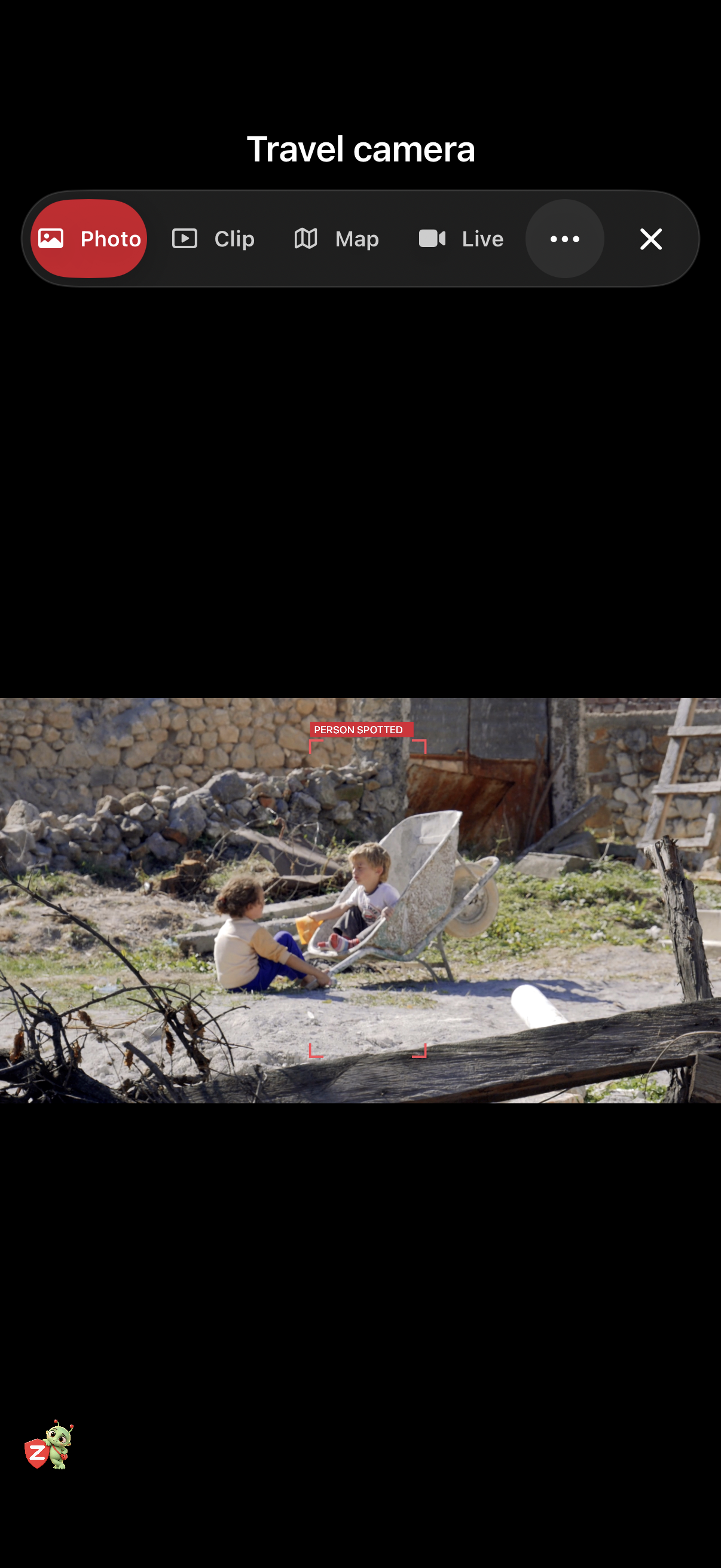
Photo & Clip
Saved media from the event’s time. A clip can finish uploading after its photo appears.
Map
The source camera’s saved GPS, with a timestamp. An older fix is marked Last known.
Live
What the source camera sees now. This needs the camera connected, unlocked and Zurcit open.
CHOOSE WHAT MATTERS
Choose detections for your camera. With Guardian, mark specific areas to include or ignore while it is armed.
Scout includes people and motion. Guardian adds supported pet and vehicle detections. Choose the types you need on your owned camera, then Arm it for saved detection events. You can also open Detection types from the Video wall camera menu.
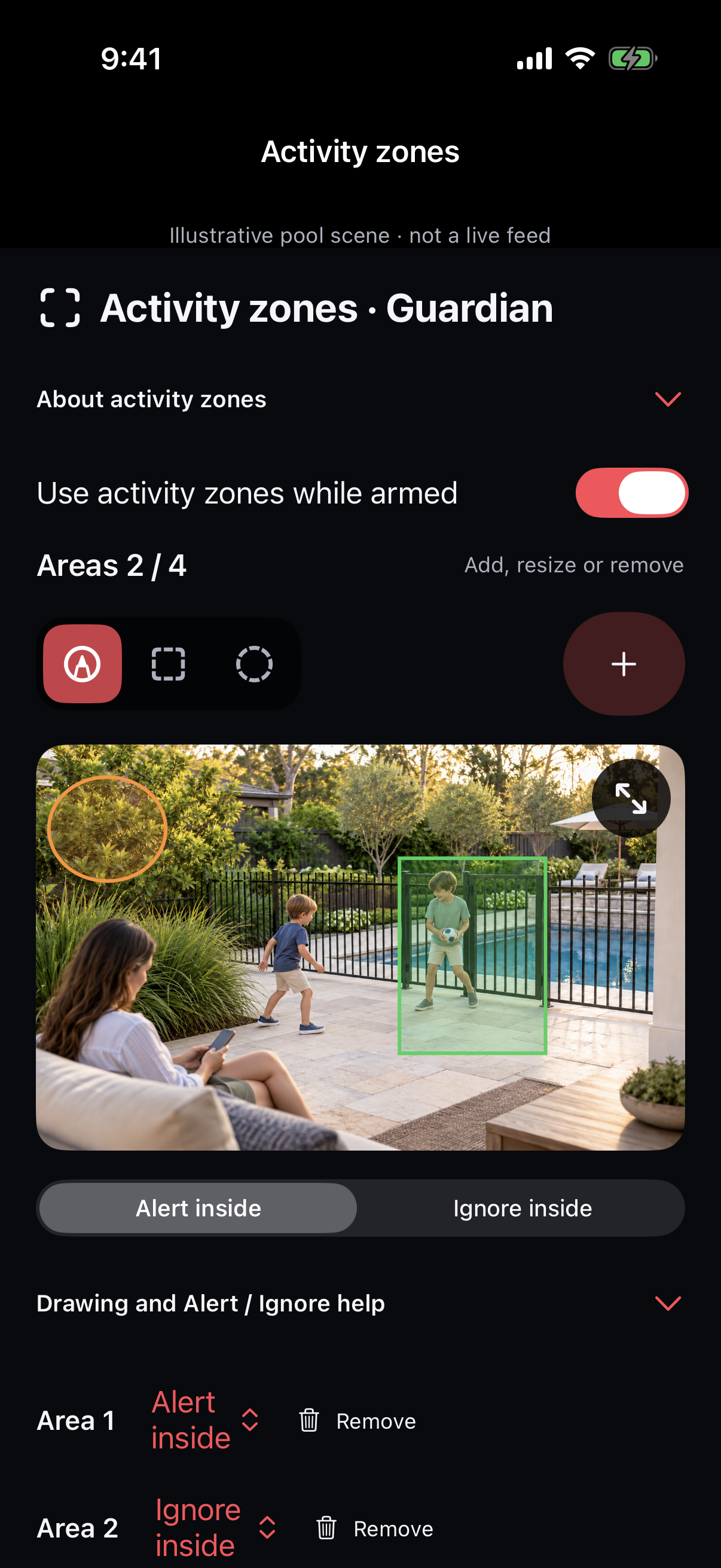
With Guardian, open Alert areas. Use Draw, Box or Circle to create up to four areas. Choose Alert inside or Ignore inside; Ignore wins where they overlap.
Tap an area to select it, move it or resize it, then save your setup. Enable areas and keep the camera armed for filtering.
Use a fixed Front or Rear view for areas, rather than Both. Check and adjust them after changing the lens, orientation or camera position. Voice alerts, Room exit and continuous recordings have their own settings.
WHEN A PERSON IS NO LONGER VISIBLE
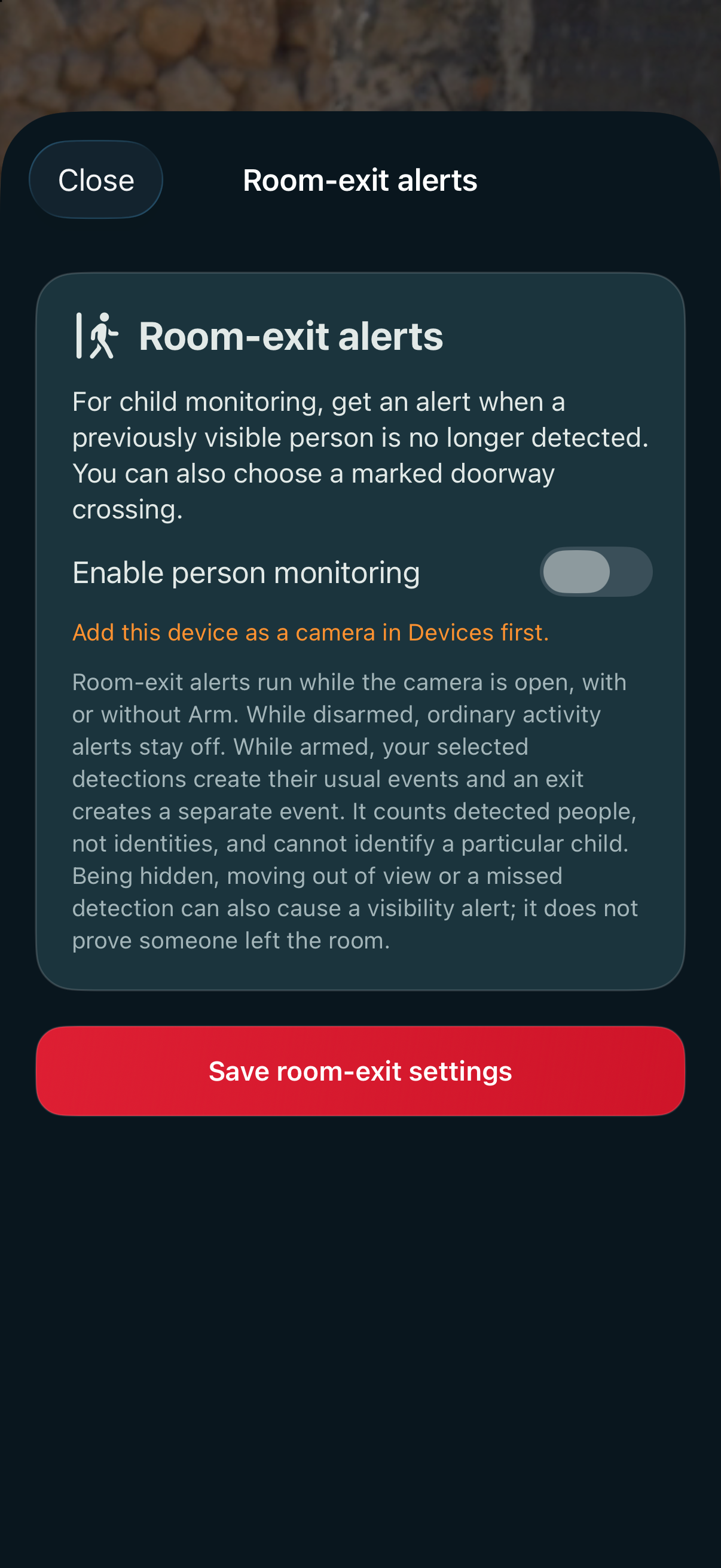
A lower detected person count can also come from obstruction or a missed detection. It does not identify a person or prove they left. Room exit has its own settings, separate from Guardian alert areas. It is not fall detection or an emergency service.
CHECK IN THE WAY THAT SUITS YOU
Set email and push choices per camera. Allow notifications on receiving devices. In Events, the bell opens your notification inbox; the separate chime control changes sound on the viewer.
Scout keeps new cloud events for 15 days. Guardian keeps them for six calendar months. Events retain their original history period when your plan changes. Free has no saved events or cloud alerts.
Allow location on the source camera and enable Share GPS with my account. Updates need Zurcit open and online. An event without saved GPS cannot show its location later.
THERE’S MORE INSIDE AN EVENT
Use the event’s Share menu to prepare its available Photo, Clip, or both. Choose where to send the exported copy yourself. Stored originals are preserved; shared copies include Zurcit branding.
When continuous footage is available, Longer recording opens the event’s time in that footage. Scout recordings are reviewed on their source camera. Guardian supports playback across account devices and private backups of completed sections. Gaps can occur if capture pauses.
Review the source camera, detection and saved time in the event details. Deleting a cloud event does not remove delivered emails or copies stored elsewhere. Manage those copies where they are saved.
Voice alerts appear with their saved phrase and available photo, clip, GPS or optional saved Voice audio. Microphone and speech permission, a supported phrase and setup are required. Recognition can miss or falsely match speech.
Explore Code Marshmallow & Voice alerts ↗Start with the setup guide, then choose the detections and alert settings that fit your camera.
Keep cameras powered, unlocked, online and Zurcit open. Features depend on plan, hardware, permissions, light and connection. Alert areas do not replace barriers or adult supervision.
KEEP EXPLORING