
Home/Features/Live viewing

OLD IPHONE. NEW POSSIBILITIES.

Your cameras.
One Video wall.

Choose your cameras, arrange the views and control what happens next — all from Video wall.

Start with two cameras on Free · more tools on paid plans

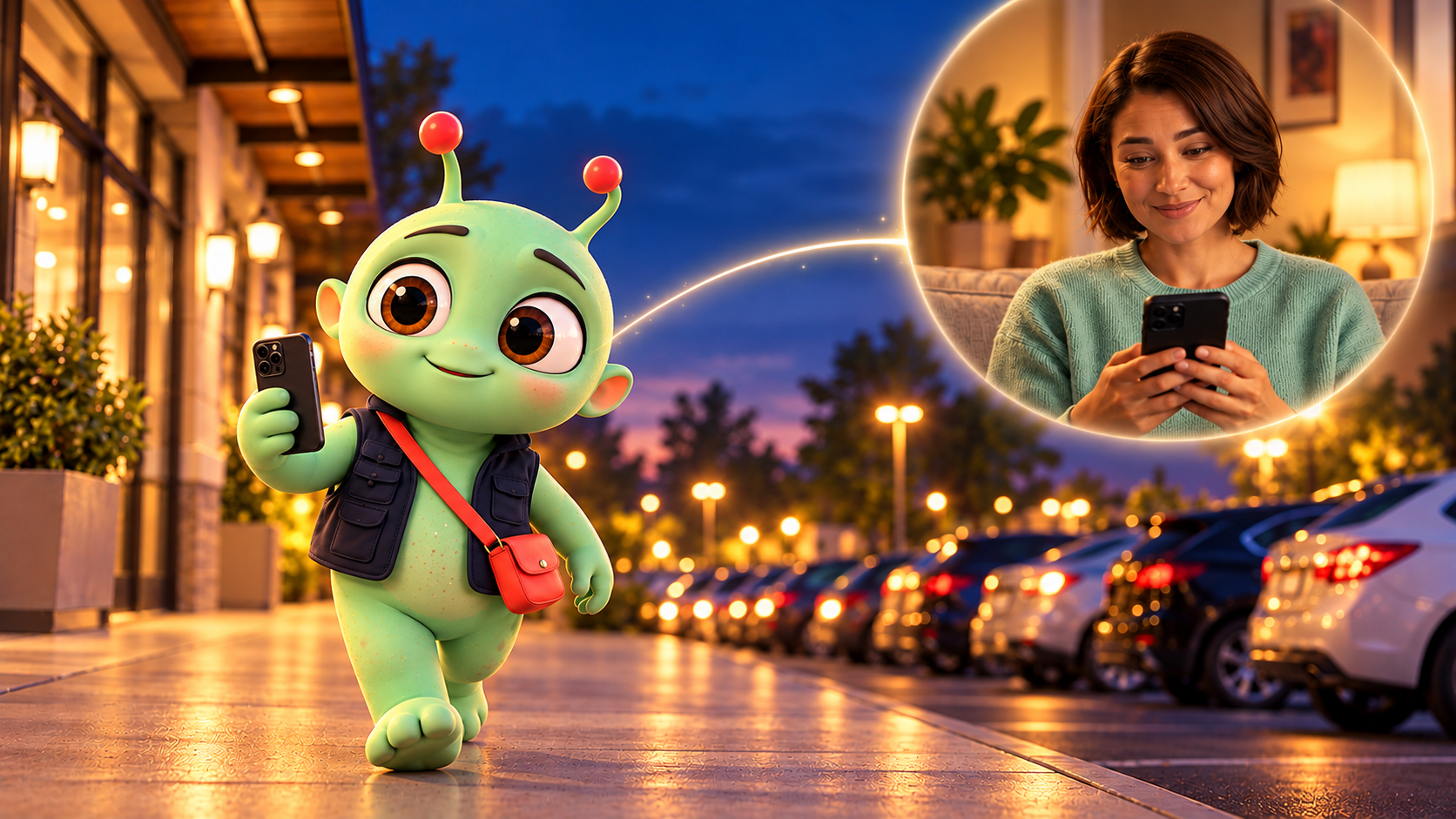
Our Zurcit mascot discovering a spare phone in a drawer while a curious cat watches
Illustrative Zurcit brand scene · actual app screens below
01

Choose your views.

Add the cameras you want on your wall. Tap a view to select it.

02

Arrange your wall.

Drag views into place. Stack them, put them side by side or enlarge one.

03

Take control.

Switch lenses, choose detections, Talk, Listen and more.

YOUR CAMERAS. ONE PLACE.
A Video wall that
moves with you.

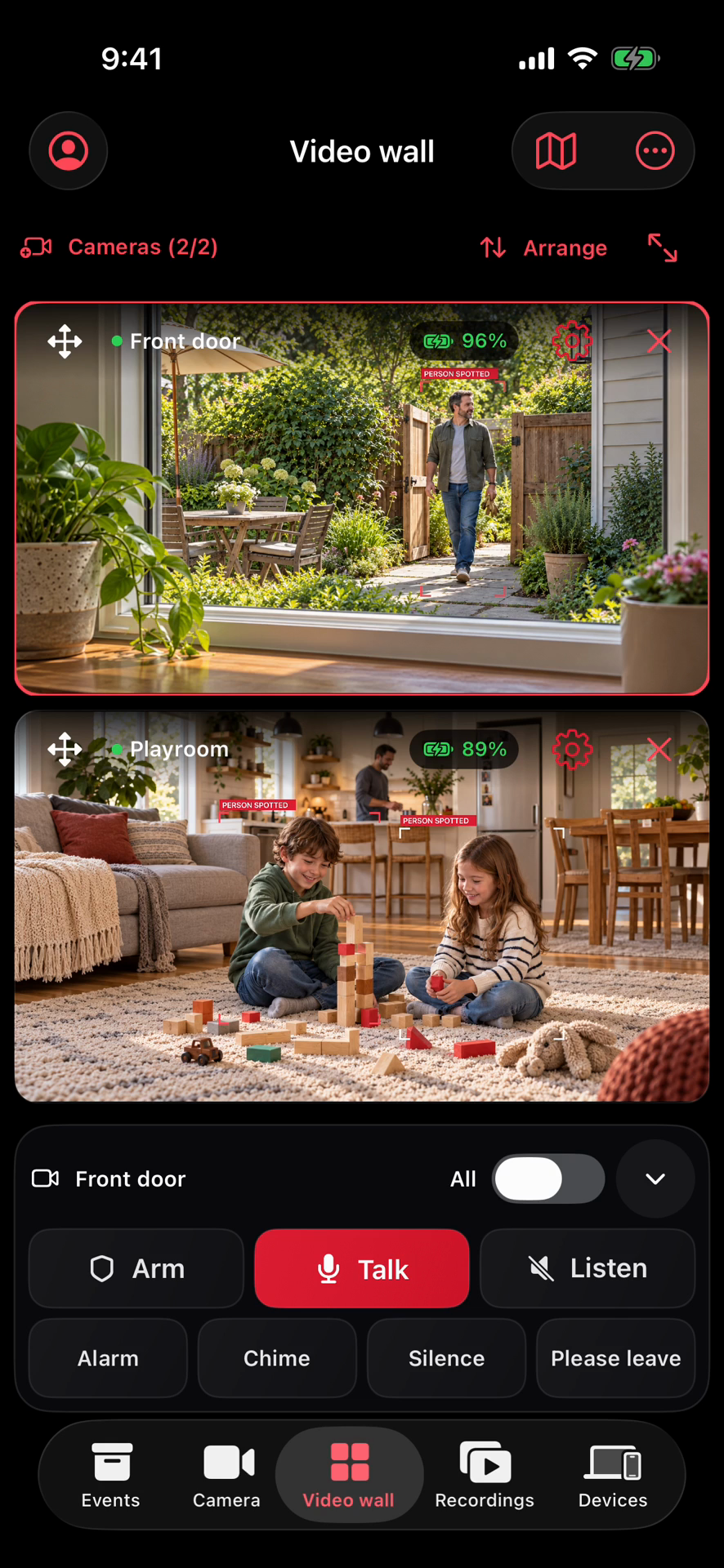
  • Cameras: add or hide views. Hiding one keeps its device and recordings.
  • Arrange: drag the move handle or view. Drop above or below to stack, or beside another view. Your layout is remembered on this device.
  • Enlarge: open one camera or the whole wall. Pinch to zoom, drag to pan and double-tap to reset a camera view.
Actual Video wall with camera selection, Arrange, Talk and Listen
Arrange your views
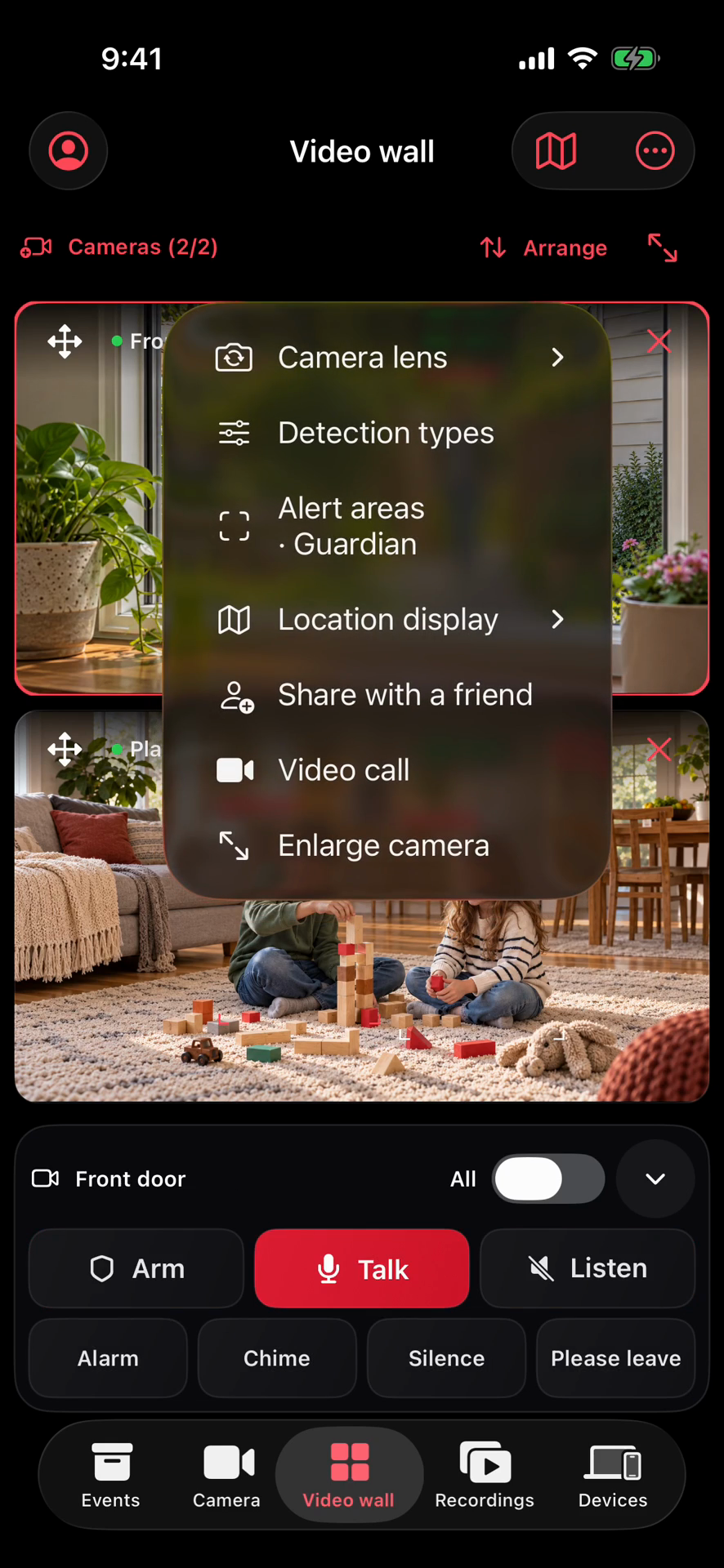
Actual Video wall menu for camera lens, detections, alert areas and sharing
Choose your controls
Actual app screens · illustrative footage

THE RIGHT VIEW. THE RIGHT SETTINGS.

Choose the lens.
Choose the detections.

  • Camera lens: switch Front, Rear or Both on supported owned devices. The camera confirms the change.
  • Detection types: choose what your owned camera looks for, then Arm for detection events on a paid plan.
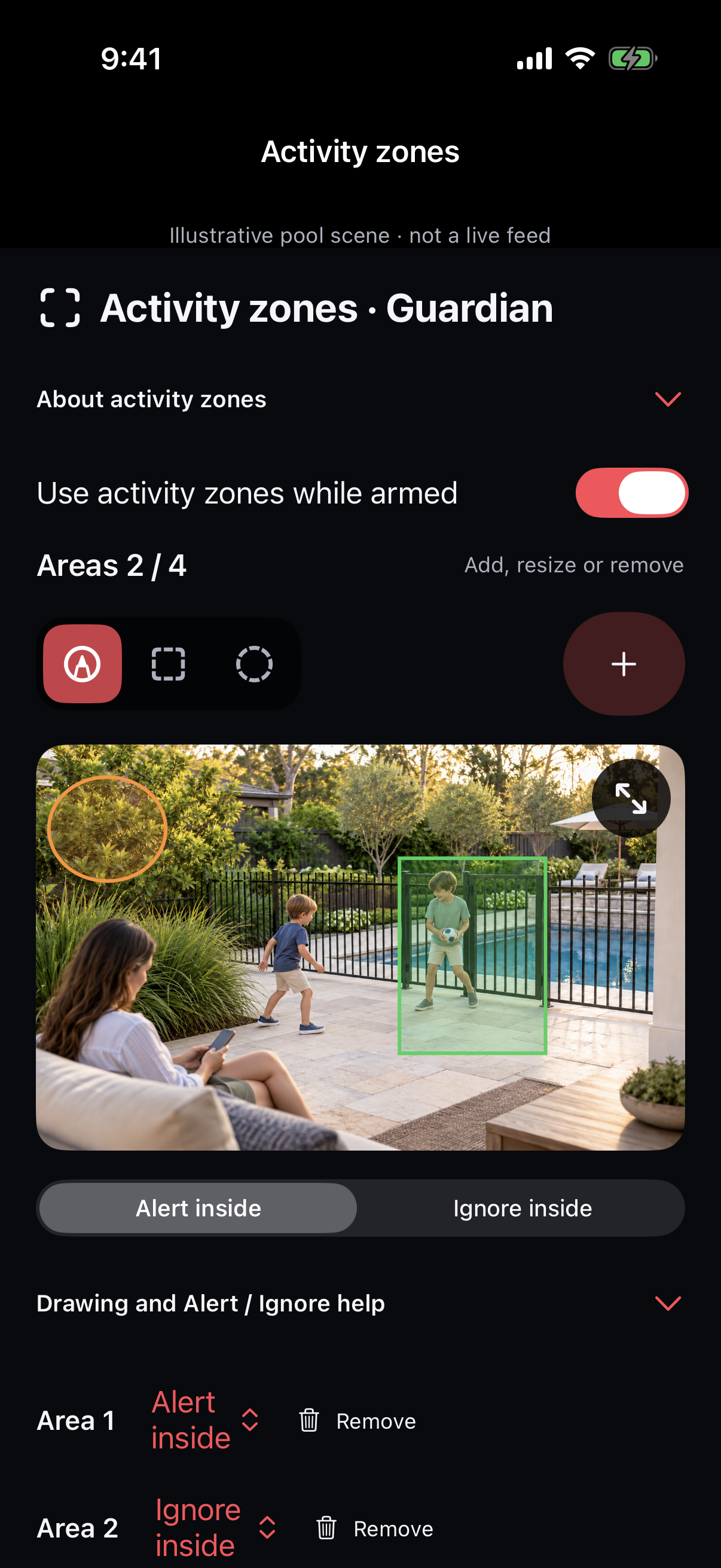
  • Alert areas · Guardian: draw up to four alert or ignore areas. Ignore wins in overlaps. Use fixed Front or Rear; recheck after moving or changing the lens.
Explore detections & alert areas ↗
Actual Guardian alert area editor with drawn alert and ignore areas
Actual Guardian app screen · illustrative scene

SELECT A CAMERA. REACH THE ROOM.

Talk. Listen.
Choose a sound.

  • Talk: send your voice through the selected camera with permission.
  • Listen: hear permitted room audio. It starts muted; choose Listen to turn it on.
  • All: broadcast Talk or sounds to connected cameras you’re allowed to use. Listen stays with one selected camera.
  • Sounds: choose Alarm, Chime or Please leave. A repeating alarm continues until Silence.
Actual Video wall control panel showing selected Front door camera, All, Arm, Talk, Listen, Alarm, Chime, Silence and Please leave
Actual app · close-up of the Video wall controls

THERE’S MORE IN THE MENUS

Your wall. Your controls.

01 / ARM & RECORD

Live view or save a moment.

Arm or Disarm an owned camera remotely when allowed. Record silent video without arming on a supported, open camera with a paid plan.

02 / LOCATION DISPLAY

Put the view in context.

Choose Video + Map, Map off, or Corner map when available. Open Camera map or Saved camera pins from the wall. GPS sharing is optional; older fixes show Last known.

03 / PRIVATE SHARING

Invite someone you trust.

A camera’s settings include Share with a friend. Choose cameras and permissions, then send a revocable private link.

Explore private sharing ↗
04 / VIDEO CALL

Ask the camera to answer.

Start a Video call from camera settings when allowed. The camera must Answer. Guest limits vary by plan; calls are not recorded.

05 / A BIGGER VIEW

Less chrome. More camera.

Use View video only or Enlarge camera. On supported live views, float one camera in Picture in Picture or use AirPlay. View on TV explains Screen Mirroring.

06 / CONNECTION & STATUS

Know what’s connected.

See camera status and reported battery. Use Refresh cameras, Reconnect cameras or Stop live views in the wall options.

Controls depend on ownership, plan, device support and source permissions. Live sources must stay powered, unlocked, online and open in Zurcit. Location sharing does not track GPS in the background.

MORE OF THE MOMENT
Find your footage.
Play it back.

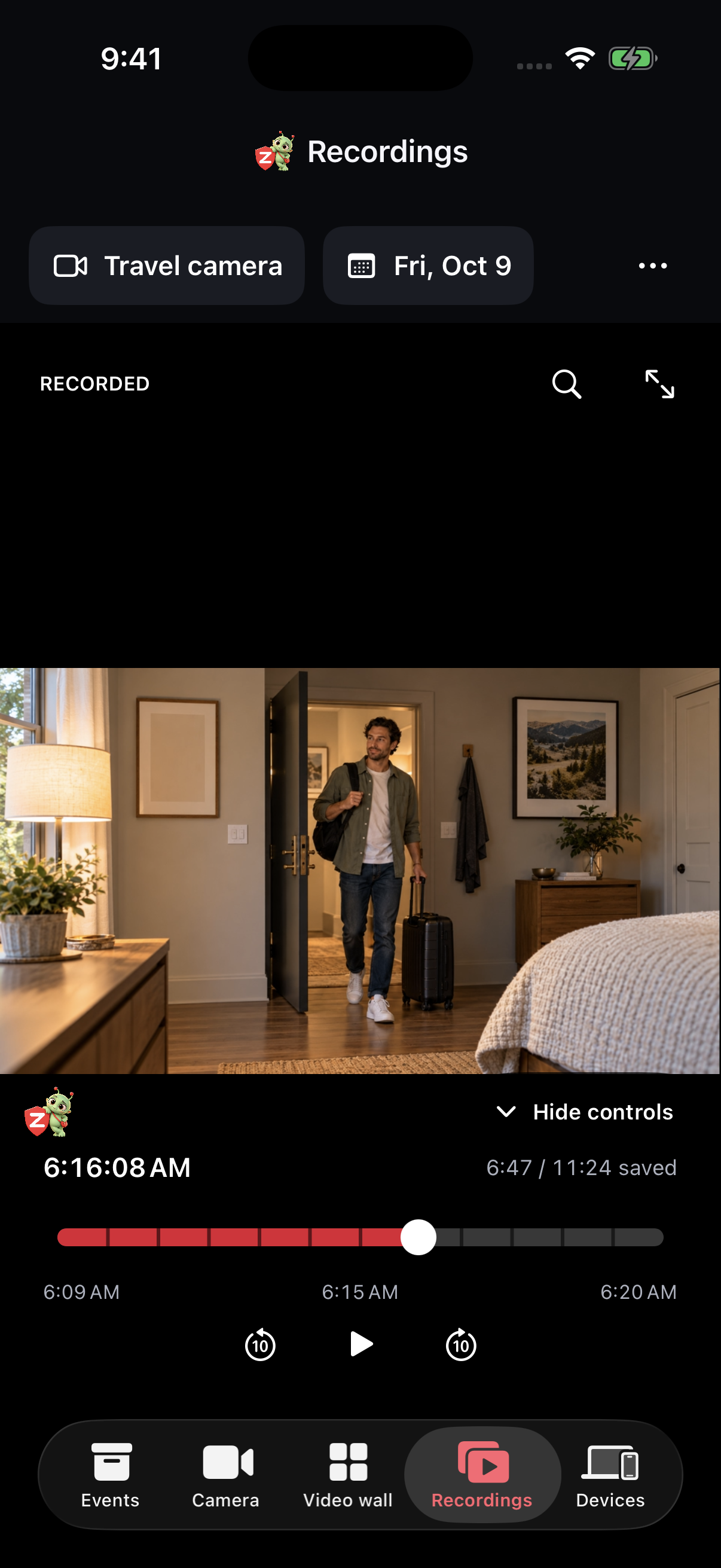
  • Choose a camera and day in Recordings, then move along the timeline.
  • Scout: a one-hour local loop, reviewed on its camera.
  • Guardian: storage-limited recordings, private backups and playback across your account. Completed backups can play while the source is offline.
See recording setup ↗
Actual Zurcit Recordings screen with camera choice and playback timeline
Actual app screen · sample silent recording

Continuous recording is silent. Features depend on plan, device, permissions and connection.

More questions & setup details
Can I use an iPad as the camera?

Yes. Zurcit supports iPhone and iPad. Camera options and front-plus-rear capture depend on the device.

Does it keep recording when I lock the phone?

The camera needs the device unlocked and Zurcit open. It is not a background security camera.

Is continuous recording included free?

No. Free has no saved events or recordings. Scout includes a one-hour local recording loop. Guardian offers storage-limited recording and private backups of completed footage.

KEEP EXPLORING

Explore more features.