

FOLLOW THE APP SCREENS
From spare phone to live view.
Sign in with the same account on your camera and viewer. Then follow these screens.
- 01
Add this device.
On your camera phone, open Devices, give it a name and tap Add this device as a camera.
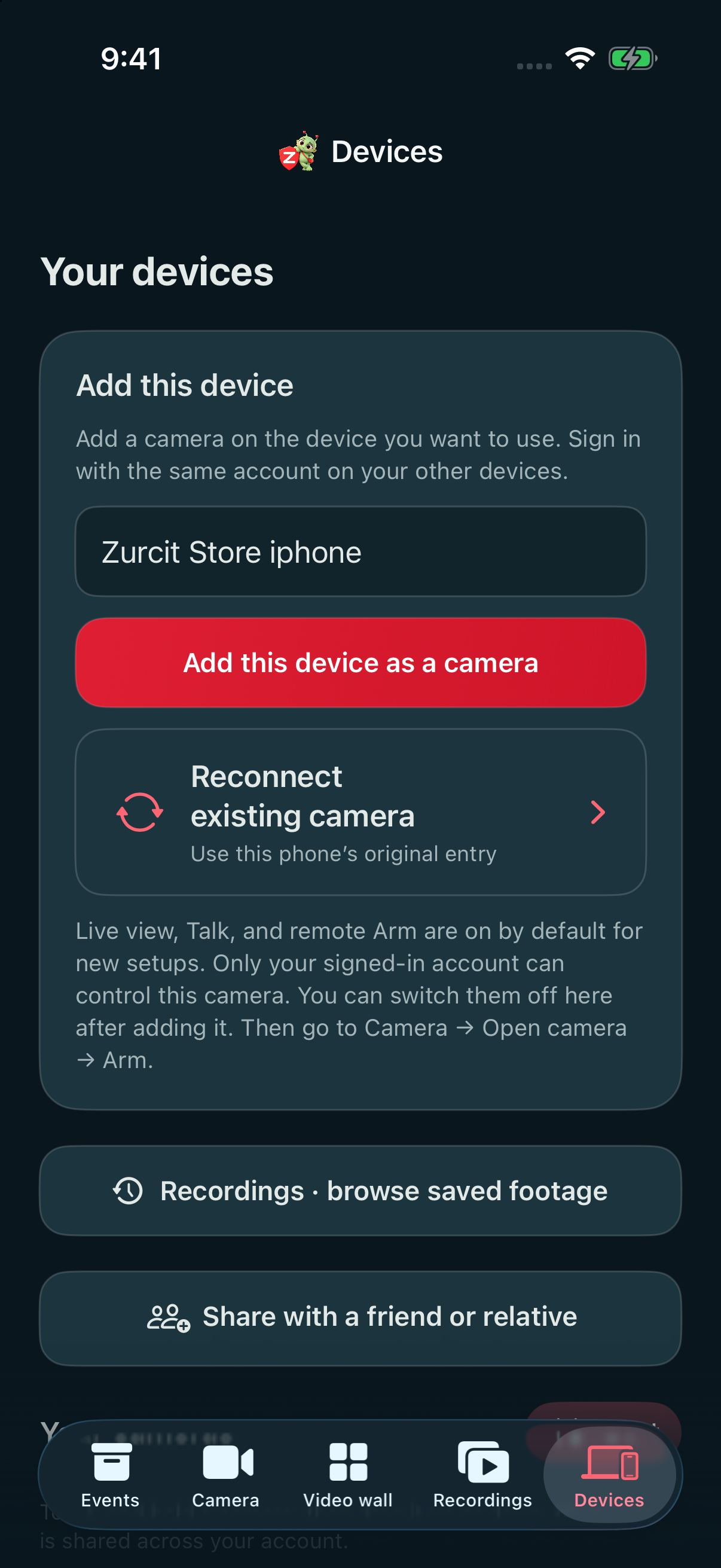
Actual app · sample account and cameras · arrows highlight the controls - 02
Turn on the camera.
Open Camera. Tap Turn on camera or the video icon, then allow camera access.
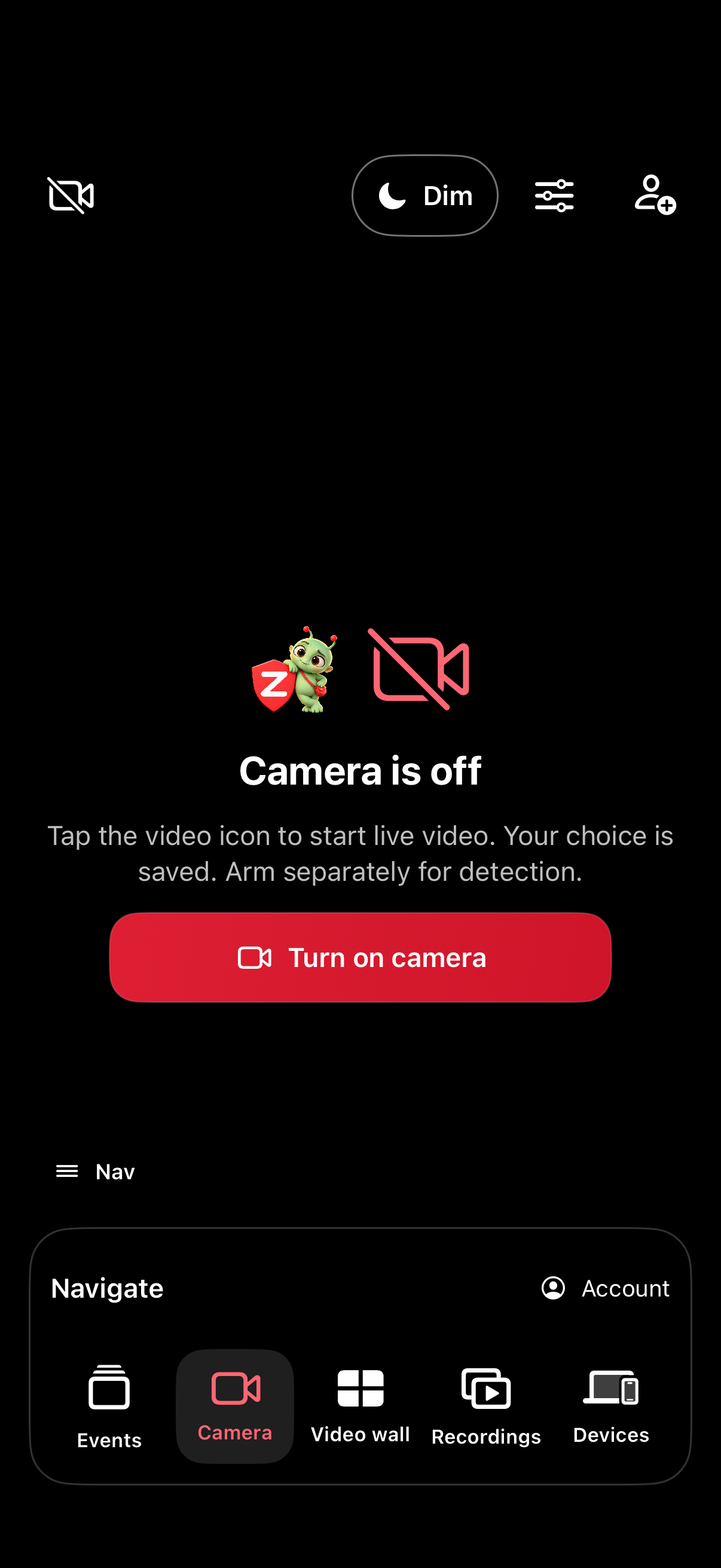
Actual app · cropped view · Camera off before startup · arrows highlight the controls - 03
Arm is your choice.
Live viewing works without Arm. For detection events on a paid plan, select your detections and tap Arm.
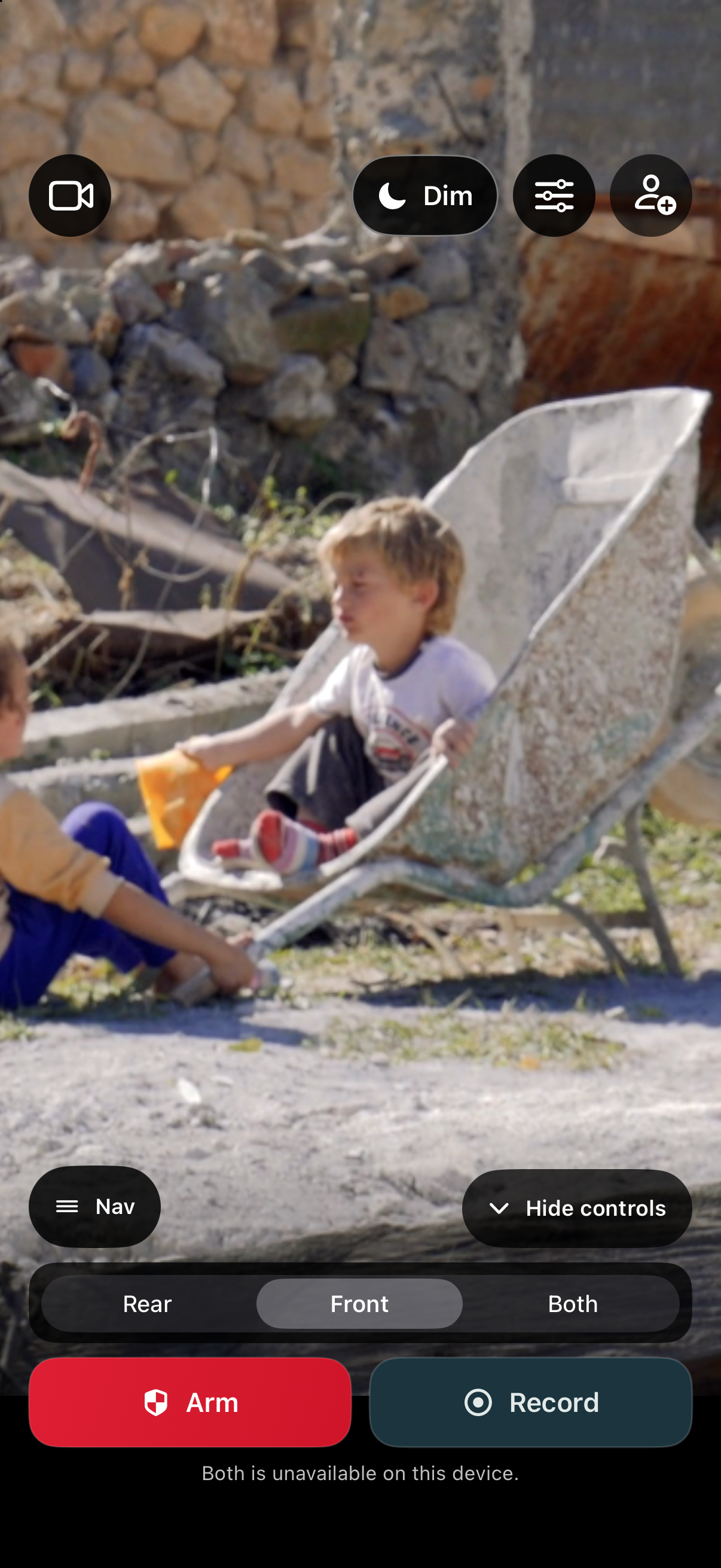
Actual app · cropped view · illustrative camera scene · arrows highlight the controls - 04
Open your viewer.
On the other device, open Video wall and choose the camera you named.
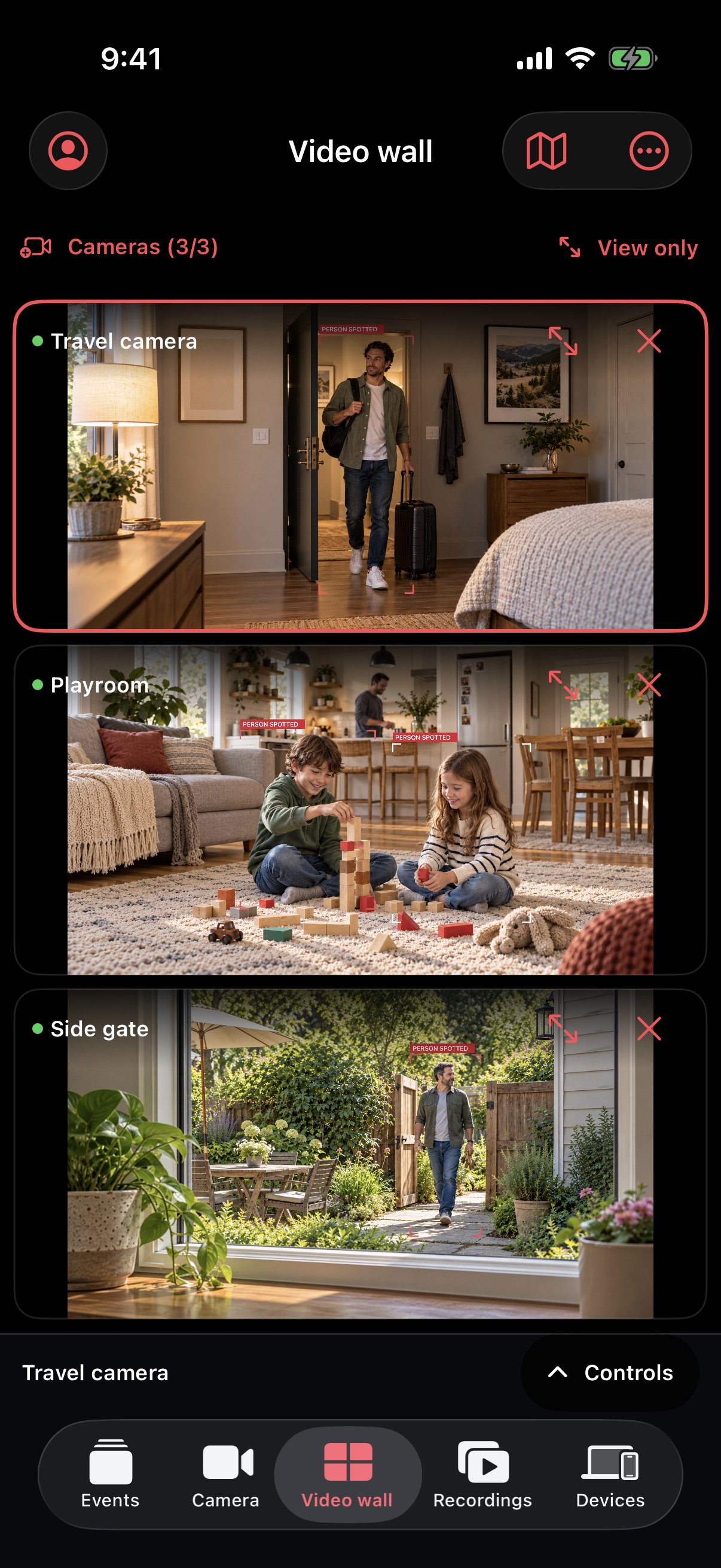
Actual app · illustrative footage · arrows highlight the controls
Live video: keep Zurcit in the foreground, the camera on, and the source unlocked and online. Voice: optional Background listening can continue after leaving the foreground; force-quitting or restarting stops it.
Permissions & detailed camera setup
Start here
Your first camera, step by step.
Sign in and choose your plan.
Create an account or use Apple, Google or email sign-in. Continue with Free, or compare Scout and Guardian in Account → Zurcit plans & subscriptions. Apple shows your local price, trial eligibility and renewal terms. You can skip the guided introduction and replay it from Devices → App walkthrough.
Add the device you’ll use as a camera.
On that iPhone or iPad, open Devices, give it a useful name and choose Add this device as a camera. Sign in with the same account on your other devices to watch. The web dashboard is a viewer; it does not turn a browser into a detection camera.
Open the camera and give it a view.
Allow camera access, choose Front or Rear, then open the preview. Compatible devices also offer Both. Position it on a stable, ventilated stand with a charger. Open Camera tools for Voice alerts, Room exit, lighting or Alert areas. Change lenses while disarmed.
Choose detections, then Arm.
Scout includes people and movement; Guardian adds pets and vehicles. Select the detections you need, then tap Arm. If the detection alarm is enabled, allow the 30-second exit countdown. Free provides live viewing and on-camera motion indication, without saved events or cloud alerts.
Check in from another device.
Open Video wall in the app or web dashboard. In Devices on the camera, Allow remote viewing & control must be on. Choose the camera to watch, talk or play a sound. Both devices need an internet connection; Local Network permission helps direct viewing on the same Wi-Fi.
Run a real test.
Walk into the view after arming. Check the photo, clip, location and enabled alerts on the receiving device. Test Talk, Listen and the alarm in the room, including after dark. Check the device’s media volume and connected audio output.
Make the wall work for you.
Use Cameras to add or remove views. Arrange changes their order and layout. A tile’s settings dropdown opens its controls; its X removes only that view from the wall, keeping the registered camera and recordings.
Enlarge a camera from its settings to focus on that camera. The wall’s enlarge button shows the whole wall. In landscape, bring up the compact bottom controls without leaving the enlarged view.
Talk, Listen and alarm sounds
Talk sends your microphone to the selected camera’s speaker. Tap again to stop. All/Broadcast sends to connected cameras when you choose it. Set the receiving camera’s media volume and disconnect headphones or unwanted Bluetooth outputs.
To hear the room, enable Devices → camera → Allow live room audio on the source and allow microphone access. Select that camera and tap Listen on the viewer; live views start muted. Mute stops listening. Video clips, continuous recordings and TV feeds remain silent.
Alarm starts a siren; Silence stops it. Chime and Please leave play their respective sounds. Commands need the camera online with Zurcit open. Talk can temporarily lower a sounding alarm.
Battery, offline status and reconnection
Where available in your app version, a battery icon shows the camera’s last reported percentage. Tap it for charging status, report time and an approximate runtime when enough discharge data is available. A battery below 15% has a red indicator. Old readings are not a live battery measurement.
Guardian can email low-battery warnings at 15% and 5% when camera email alerts are enabled. A camera must be awake and reporting; warnings are not sent while charging. Offline alerts report an unexpected loss of a previously online camera, rather than deliberately stopping the camera.
If video stops, check power, Wi-Fi or cellular data and that Zurcit is still open on the source. The app tries to reconnect. The wall’s options also let you reconnect or stop live views. A loading or offline view is not a current camera image.
Picture in Picture, TV and widgets
Use the floating-camera button on a supported live view for Picture in Picture. Let live video connect first. For TV viewing, enlarge one camera and choose AirPlay, or use View on TV for Screen Mirroring guidance. TV compatibility and buffering vary.
On iOS or iPadOS 17 or later, add Zurcit’s Camera Arm & Disarm Home Screen widget, then edit it to choose a camera. Its buttons open Zurcit to send your request. The displayed status is last reported; the widget cannot wake a closed or locked camera app.
Foreground or optional background listening: start Voice listening with Zurcit open. Enable Background listening to continue while another app is visible or the screen is locked. Force-quitting, restarting or system interruptions can stop it. Live camera video still requires the source app in the foreground.
Step-by-step: set up Voice alerts for a family member →
A phrase someone can notice
Try “help help.”
- On the source device, open Camera tools → Voice alerts. Scout or Guardian is required.
- Save a phrase and enable Voice alerts. Allow microphone and speech access; supported on-device recognition is required.
- Choose the camera’s email and push alert settings, then test the phrase from the distance you expect to use.
A recognized phrase can create an event while Zurcit is open, even if the camera is disarmed or off. An armed camera can add a photo and silent clip. The viewer’s Listen/mute setting does not control phrase recognition.
Save Voice alert audio is optional and starts off. If enabled, a match can save up to eight seconds of preceding audio with the event and attach it to enabled alert emails. Tell people nearby before enabling it.
Noise, distance and speech differences can cause missed or false matches. Zurcit does not detect falls or automatically contact emergency services. Test the feature with the people who will use it.
See the event. Know the place.
Explore the Events guide → for camera selection, event media, detections, Guardian alert areas and Room exit.
Events shows saved detections from your cameras. Open an event to switch between its available Photo, Clip and Map. Photos start in Fit so the entire image is visible. A clip can finish uploading after the photo appears, including after a short armed session.
The bell opens the notification inbox. Recent versions show its unread count and let you Select all and Mark as read. Inbox notices remain for 48 hours. Use the separate sound/chime control for alert sounds on this viewing device. Email and push choices are set per camera; Apple notification permission is set on each receiving device.
Enable the source camera’s location.
On the camera device, turn on Share GPS with my account in Account → Location sharing or Devices → this device → Location, and allow location access. Keep that camera open and online. Events request a fresh GPS fix and can use a dated last-known fix when needed. A map can appear after the photo or clip. Older events without a saved location cannot show where that event happened.
The wall’s Map shows authorized cameras with known locations, including offline last-known positions. A saved camera placement pin is separate from moving GPS. A viewer’s own GPS does not locate a remote camera.
For multiple cameras, choose Video + Map. Corner map is available when viewing one enlarged camera; drag its handle to move it. View location opens a larger map with address, coordinates and report time. Map off hides the map; it does not turn off location sharing.
Find your saved footage.
Enable Continuous recording in the camera’s settings before arming. Scout keeps a one-hour local loop. Guardian can keep footage to a selected 1, 4 or 8 GB limit, or use an eight-hour loop. Oldest footage is overwritten at the limit. Recording is silent and requires Zurcit open on the source.
In Recordings, choose a camera and day, then use the timeline, playback, zoom and fullscreen controls. With Scout, review continuous footage on the recording camera. Guardian adds review across your account devices and the web dashboard, with private backups of completed sections.
Leave the source open until its backup completes. Backed-up sections remain available while the camera is offline; an unfinished transfer still needs the source connected. View longer recording on an event opens its time in available footage. Gaps can occur when capture pauses.
Use recording-storage controls to delete individual items or several at once. Choose local copy and Guardian backup when both should be removed. Cloud event history is separate: Scout keeps new events for 15 days, Guardian for six calendar months. Older events retain their original expiry.
A few more ways to set it up.
Alert areas · Guardian
Open Camera tools → Alert areas on your owned camera. With Front or Rear selected, draw up to four areas using Draw, Box or Circle. Choose Alert inside or Ignore inside; ignored areas take priority. Move or resize a selected area, save, then Arm and test inside and outside it.
Keep the camera fixed. Redraw areas after changing the lens or view. Disabling areas retains their shapes but pauses filtering. Both-camera mode is unsupported; areas do not change Voice alerts, Room exit or continuous recording.
Use front and rear together
Choose Both on a supported device while disarmed. Open and position both views, then Arm. Each view is checked independently for your chosen detections; saved media can include both views when your plan enables recording. One device still counts as one registered camera.
Compatibility depends on the device’s available camera resources. Each view needs light; rear flashlight and LiDAR features are for Rear mode. Test live views and saved footage on your actual device.
Room exit, light and depth
Camera tools → Room exit can report when a previously confirmed person count decreases for your selected delay, while armed or disarmed. Save a fixed, well-lit view. “Person no longer visible” can also mean an obstruction or missed detection; it does not identify a particular person or prove they left.
Light & depth checks compatible rear LiDAR and flashlight features. Depth-assisted movement compares a fixed empty-room baseline. Optional Light up detected movement briefly lights the room. Neither provides guaranteed night vision; test your real doorway, distance and lighting.
Weekly arming schedules · Guardian
In Devices → camera → Arming schedule, select a time zone and armed hours, then Save. Unselected hours disarm. A manual change lasts until the next hourly boundary. Keep the camera powered, unlocked, open and remotely controllable; schedules cannot wake a closed app.
Update a location or reconnect a device
Devices → Update location lets you request a fresh location from an online camera or save a placement pin and viewing cone. Cones are placement guides, not measured detection range. Update status refreshes available battery and connection information.
If this phone loses its registration but its old camera entry remains, choose Reconnect existing camera and select this phone’s original entry. This keeps existing cloud history and any footage still on the device. Do not select another phone’s camera entry.
Keep control of your account.
Devices lets you rename or remove cameras and set email, push, audio and remote-viewing choices. Removing a view from Video wall does not delete its camera. Removing a device from Devices removes its connection and associated cloud media after confirmation.
Account settings include sign-out, subscription management and account deletion. Signing out preserves footage for your next sign-in. Deleting a Zurcit account does not cancel Apple billing; cancel renewal in Apple subscription settings. Offline copies and delivered email attachments must be removed separately.
See Privacy & your data for storage, sharing and deletion details. For plan limits and current prices, compare plans.
Email support@zurcit.com with your camera name, app version and what you expected to happen. Please don’t send passwords or private invitation links.