
Connect before you start walking.
Choose a friend or family member who is available to watch and respond. Ask them to install Zurcit on their iPhone or iPad. Your source phone needs camera permission and internet access; both devices can use Wi-Fi or mobile data.
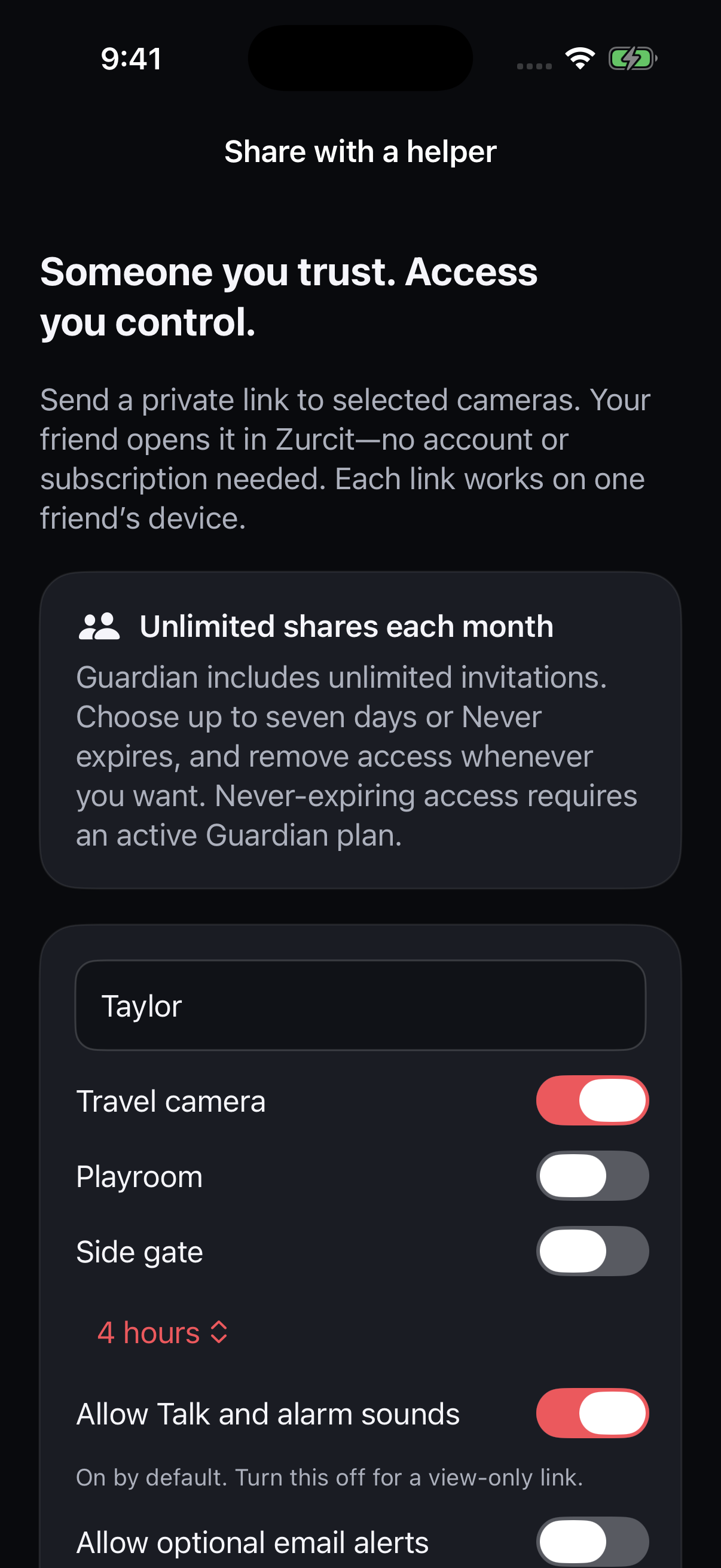
Free includes two private invitations per UTC calendar month, lasting up to one hour each. Scout includes 12 one-hour invitations. Guardian includes unlimited invitations and an optional Never expires choice while Guardian remains active. Creating a new invitation uses an allowance even if you remove it early.
1. Create a private invitation.
On your phone, choose Share from a camera, or open Devices → Share with a friend or relative. Select the camera your friend should see and choose the invitation’s duration.
Leave Allow Talk and alarm sounds on if you want your friend to speak through your phone or request a sound. Turn it off for view-only access. Helpers can view only the cameras covered by their invitation; they cannot delete recordings, change camera settings or arm and disarm your camera.
Choose Create private invitation and send the resulting link directly to that person. Each link works for one helper device. Create separate links for separate people and avoid posting invitations publicly.
2. Add your location if you want to.
Enable Share this phone’s location when creating the invitation and allow location access. This is optional; sharing video does not require GPS.
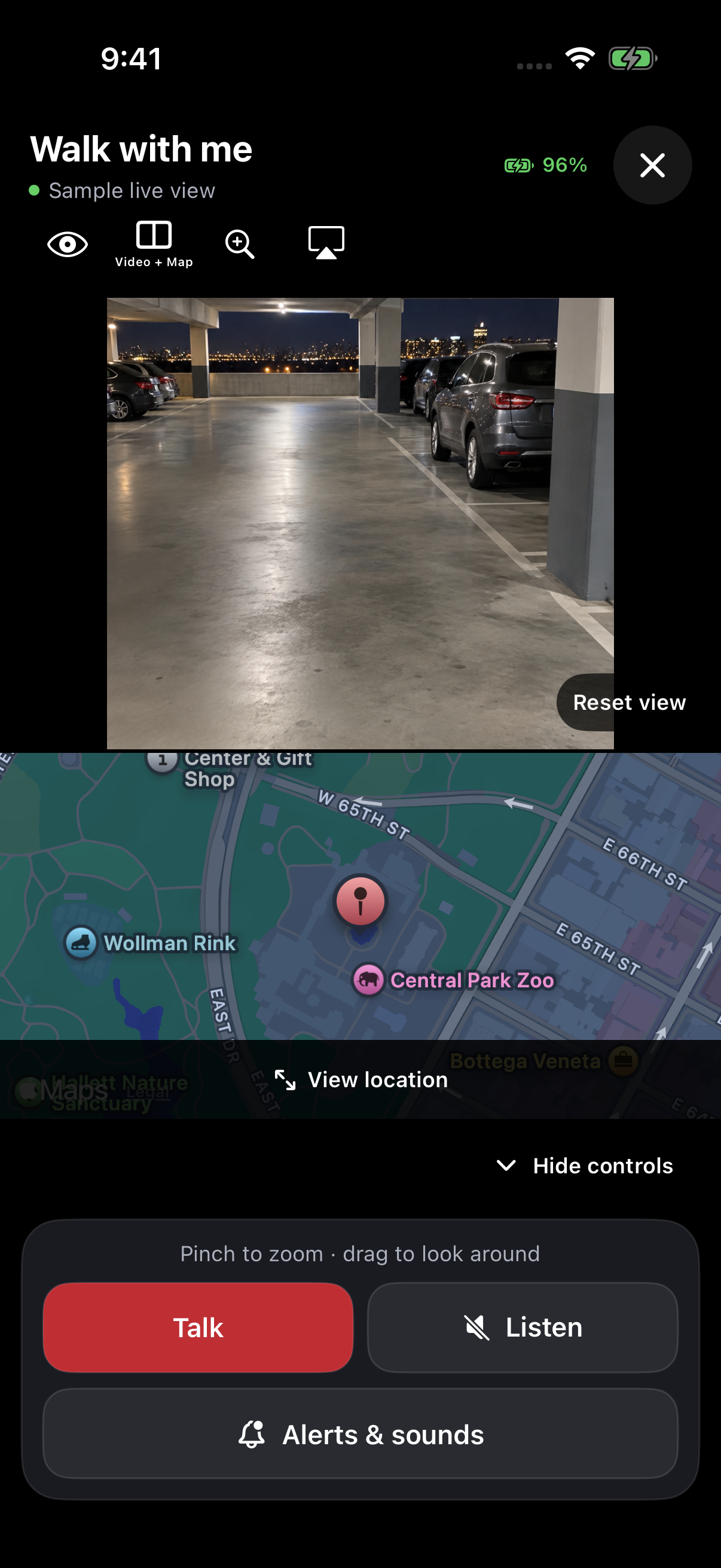
Your friend can see the latest available pin, an approximate nearby address, coordinates, accuracy and update time. Location updates while the sharing phone is open and online. It stops updating when the app leaves the foreground. An older fix is labeled last known, so your friend should check its time before using it.
The phone sharing the location and the selected camera may be different devices. For a walk, create the invitation on the phone you are carrying and select that phone’s camera. You can stop location sharing separately from video access.
3. Have your friend open the link.
Your friend opens the private invitation in Zurcit. They do not need an account or subscription. Check that the camera name and picture match the phone you will carry.
With permission, they tap Talk to send their voice through your phone. Check its speaker output and media volume before leaving. If they request Alarm, use Silence to stop camera speaker sounds. Agree on how you will use these controls together.
Listen is a separate choice. If you want them to hear nearby room sound, enable live room audio on the source camera and allow microphone access. The helper then taps Listen to unmute the view. Camera sharing can work without live room audio.
4. Test your walking setup.
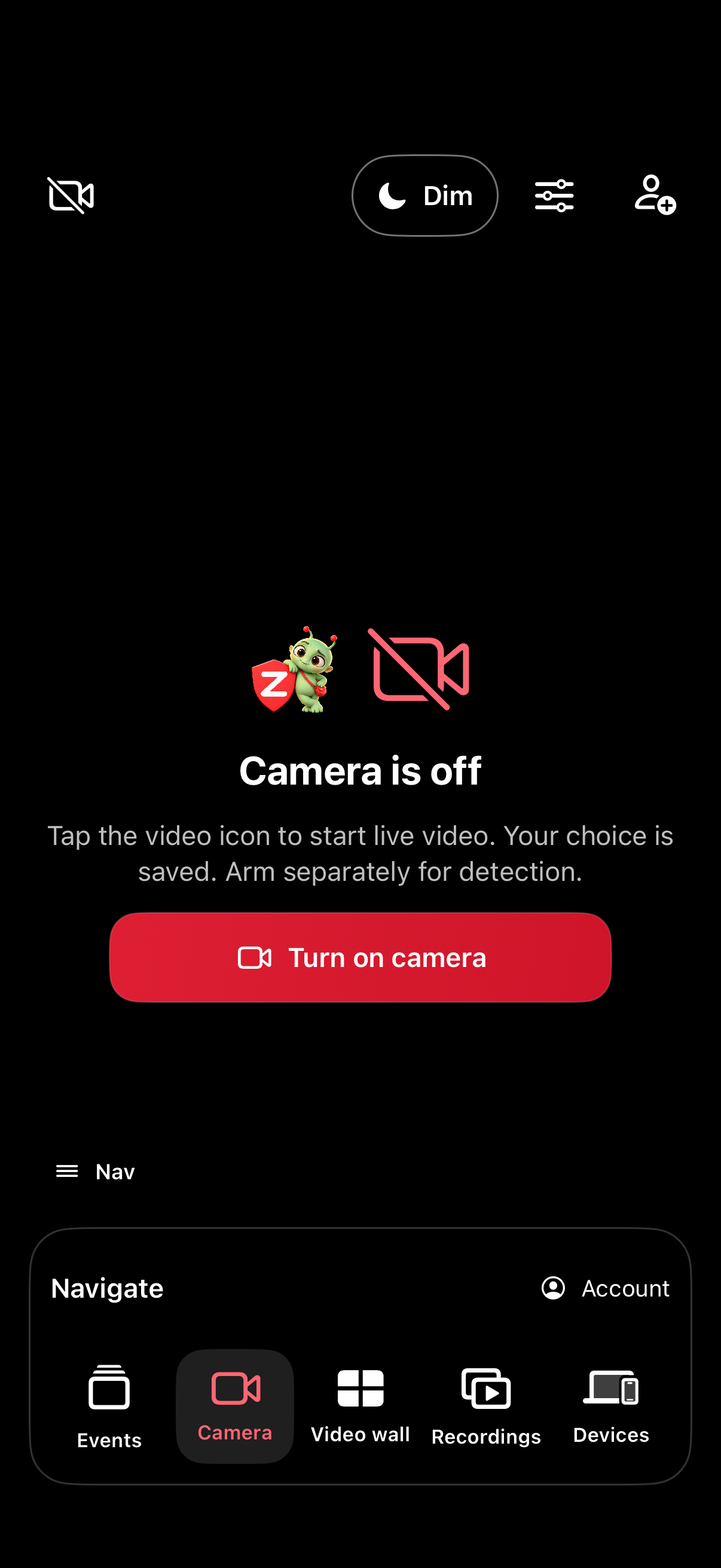
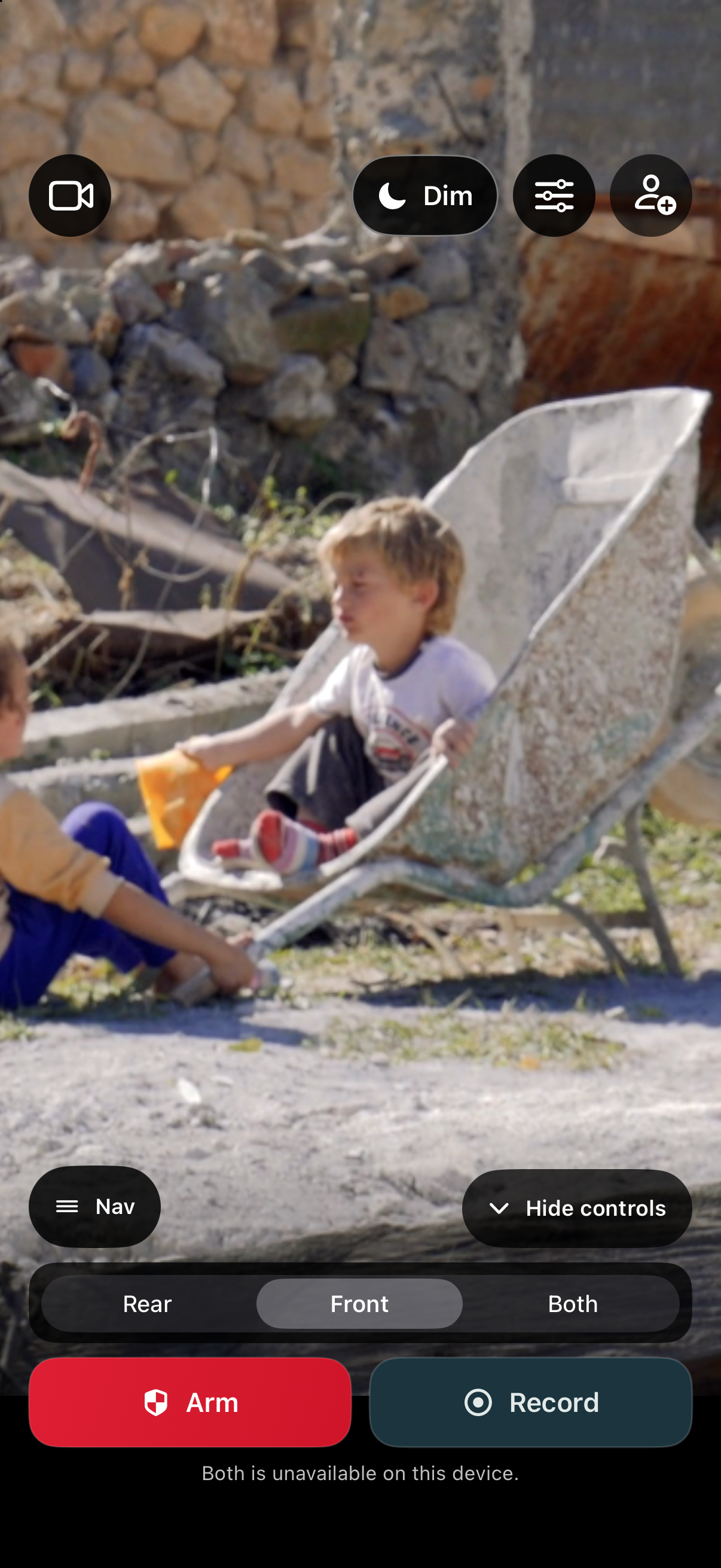
- Turn the camera on after creating the link. Arm only if you want your selected detections. Keep the lens clear and Zurcit in the foreground on an unlocked phone. Do not put the lens inside a pocket or bag.
- Check the image from the way you will actually carry the phone. Use a secure position that leaves your hands free.
- Have your friend say something through Talk and confirm you can hear it from the source speaker.
- If GPS is enabled, check that the pin and last-update time make sense. Test the Wi-Fi-to-mobile-data transition before relying on it.
- Check battery and mobile coverage. Agree on what your friend should do if the stream or location stops updating.
5. End access when you are finished.
Open your invitations and choose Remove access to stop a helper early, or let a timed invitation expire. Use Stop sharing location if you want to stop GPS separately. Your friend can leave shared access from their device.
Removing access stops future authorized access; it cannot recall screenshots, downloads or information someone has already copied. Share only with people you trust.
A few common questions.
Can my friend watch from another city?
Yes. The devices can use different Wi-Fi or mobile networks. Video and remote controls depend on a working connection at both ends.
Will this work with my phone locked?
Keep your source phone unlocked with Zurcit open for camera video and live location sharing. Locking the device or switching apps can interrupt the camera and location updates.
Can “help help” notify my friend as well?
Scout or Guardian can add saved-phrase Voice alerts. The source needs the required settings and permissions, and your helper needs an active invitation covering that camera with Shared alerts enabled. Use the family voice-alert tutorial to set up and test that path.
Does Zurcit call emergency services?
No. A private check-in shares information with the people you choose. It does not guarantee safety, replace emergency services or contact responders automatically.