
Start with permission and a small test.
Set this up with the family member whose device will recognize the phrase. They should understand what is being shared and who may receive an alert. Pick a place where the microphone can hear them and where an optional camera view is appropriate.
You need Zurcit on an iPhone or iPad registered as a camera, Scout or Guardian on the source account, microphone and speech permissions, a supported on-device recognition language and a working internet connection for delivery. Your helper needs Zurcit installed. This walkthrough keeps the source device unlocked with Zurcit open.
1. Save the phrase on the source device.
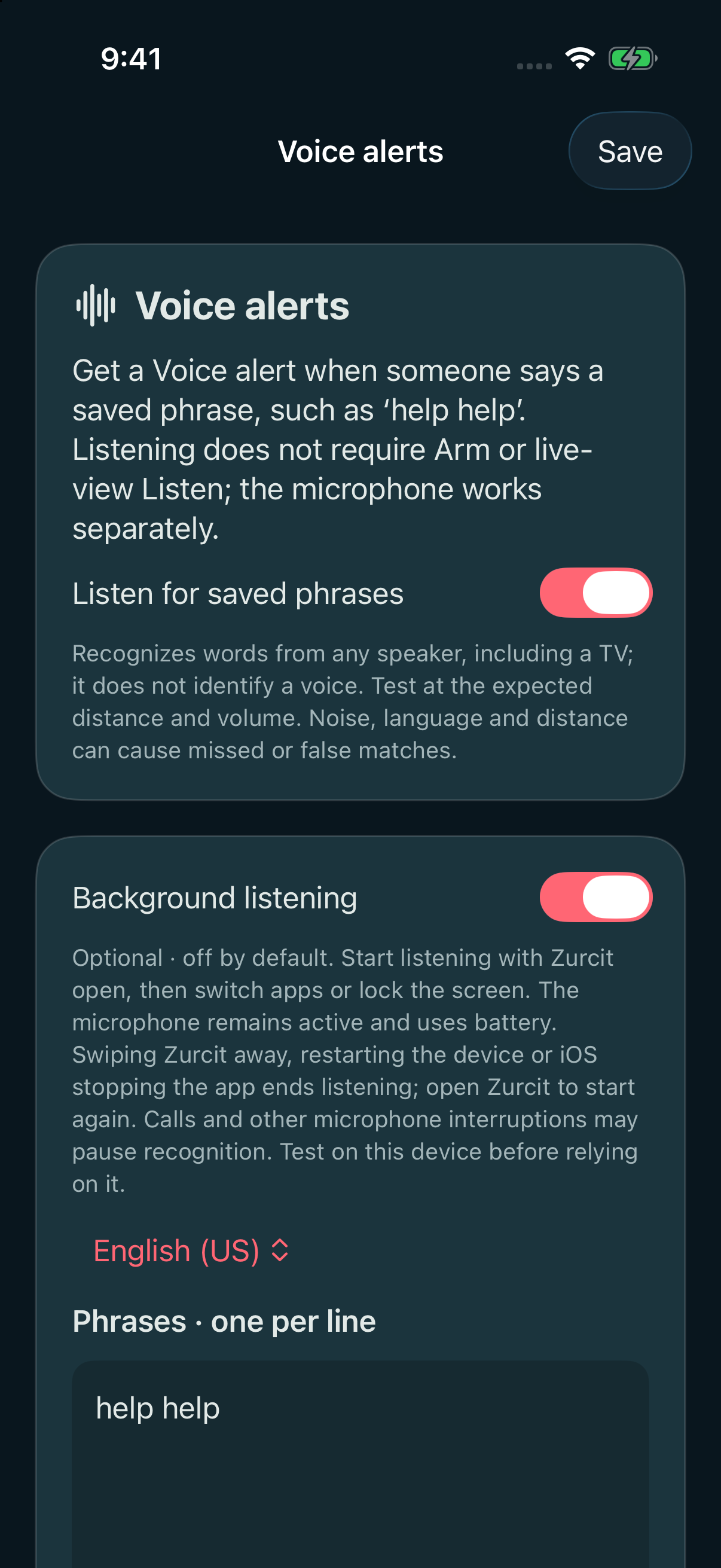
On the family member’s camera device, open Camera tools → Voice alerts. Turn on Listen for saved phrases, choose the speech language and enter help help as a saved phrase. Allow microphone and speech-recognition permissions, then save.
Use a short phrase the person can say comfortably. “Help help” is more specific than a single “help,” but recognition can still match speech from someone else or a television. It does not recognize an individual’s identity. Try the words at their normal speaking volume, from the distance they expect to use.
2. Choose who gets the alert.
Check the source camera’s notification settings and enable the push and email alert types you want. Other devices signed into the account need notification permission and the relevant alerts enabled.
For someone outside the account, use Share with a friend or relative, select this camera and create a separate private invitation for that helper device. Choose its duration and Talk/alarm permissions. The helper opens the invitation in Zurcit and enables Shared alerts. They do not need an account or their own subscription.
If you allow optional helper emails, the helper verifies their email and chooses which supported alert types to receive. Email and push are separate settings. A private invitation and its alerts end when its access ends.
3. Decide what to attach.
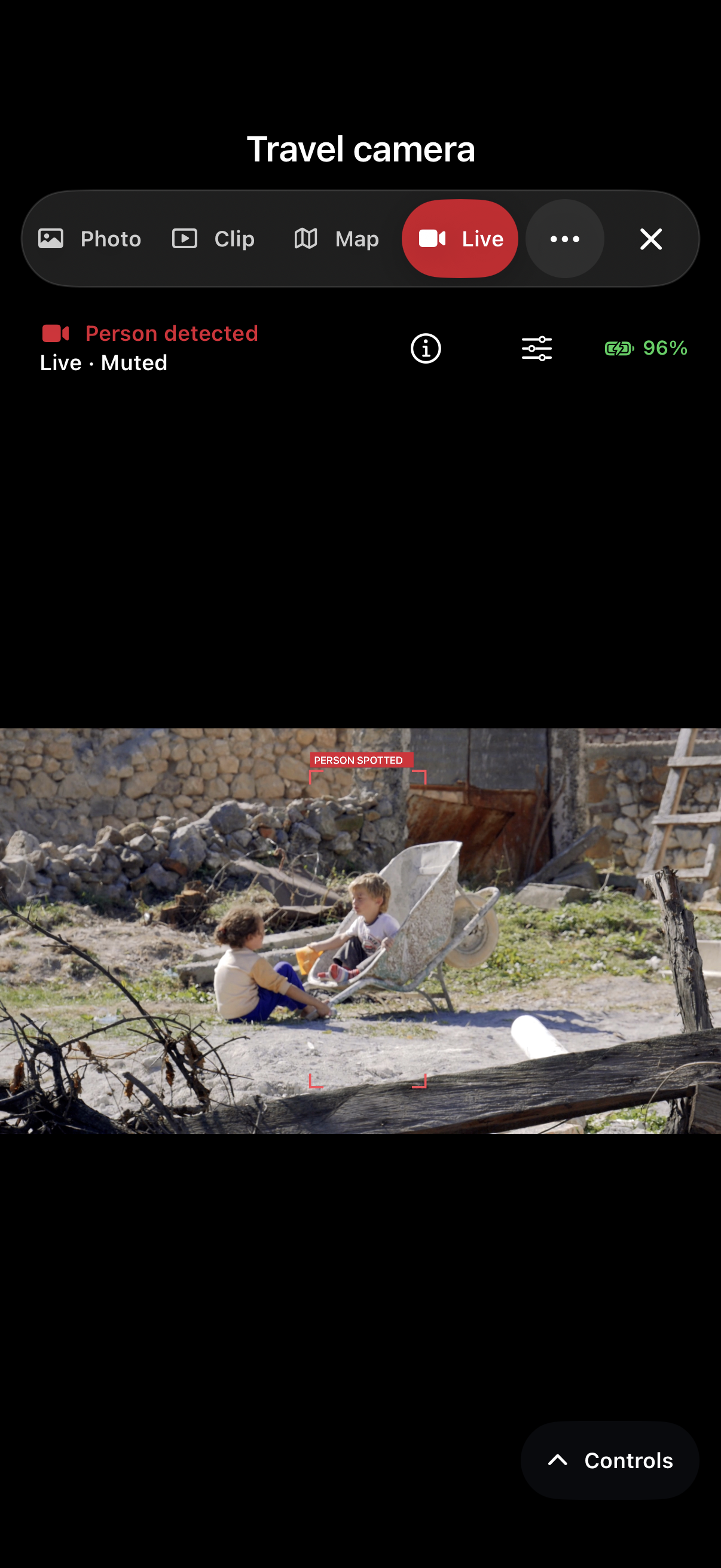
A recognized phrase can create a text-only event while Zurcit is open, including while the camera is disarmed or off. An armed camera can also add a photo and silent clip; those may finish uploading after the text alert.
Save Voice alert audio is separate and off by default. Turn it on only if you want a match to save up to eight seconds of preceding microphone audio with the event. Nearby speech can be included, and enabled emails can contain an attachment. Explain this choice to people nearby.
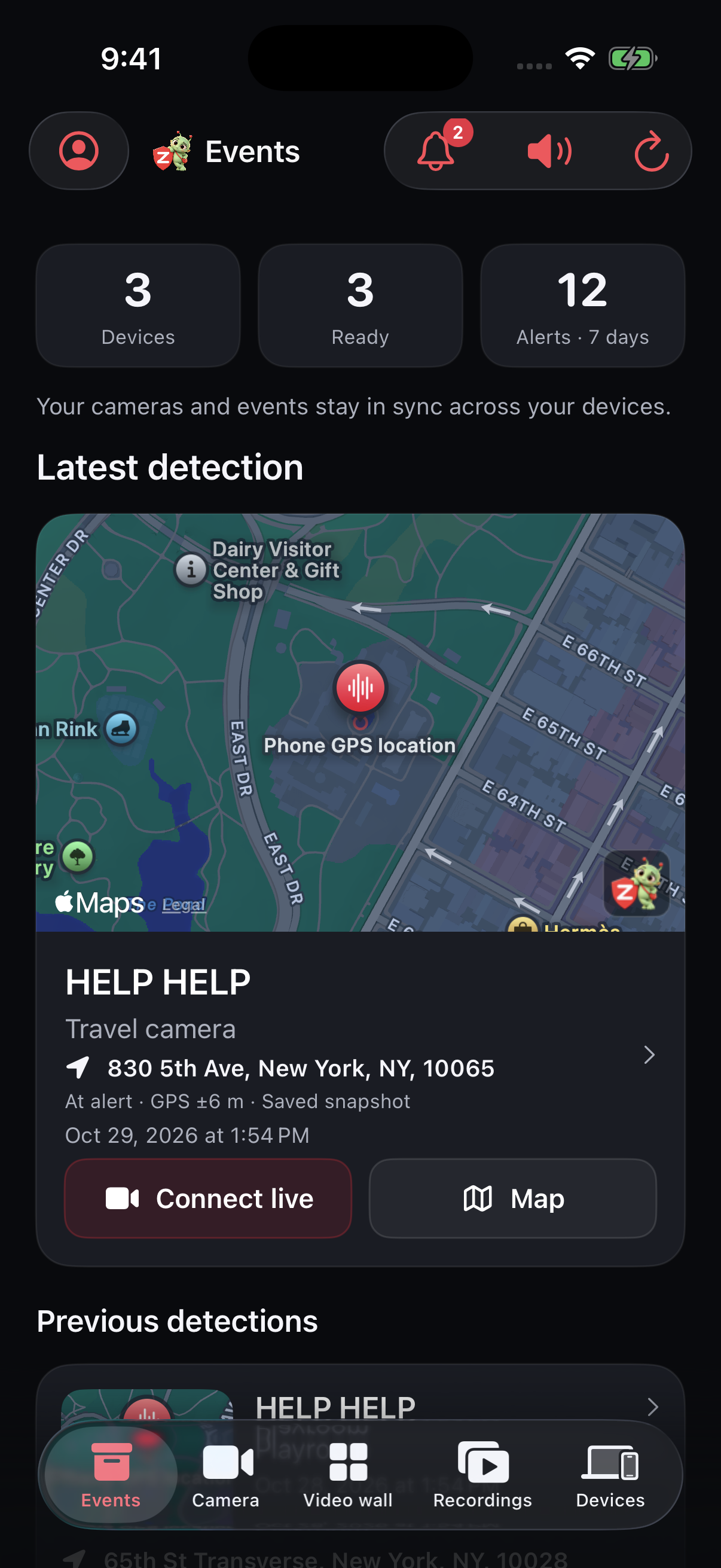
If you want an event location, enable the relevant phone-location option and grant location access. A fresh or last-known GPS fix can be attached with its capture time. An old location is not a current location; check the date and accuracy.

4. Test the complete path together.
- Start Voice listening with Zurcit open. For listening outside the foreground, enable optional Background listening. Force-quitting or restarting stops it. Keep the source camera in the foreground and unlocked when testing live video. Confirm the helper’s invitation is active and Shared alerts is on.
- Say the saved phrase from the expected place in the room. This is a real test: enabled notifications and emails may be sent.
- Confirm the helper receives the matched phrase, opens the right event and can identify the camera.
- If Talk is allowed, have the helper speak through the source device. Check its speaker output and media volume.
- Repeat with ordinary background noise and at the expected distance. Change the placement or phrase if the result is unreliable.
If an alert does not arrive.
The device is not recognizing the phrase.
Recheck microphone and speech permissions, the chosen language and the saved phrase. Move closer and reduce competing sound. A viewer’s muted Listen control does not turn phrase recognition off. Keep the source open while testing.
The event appears, but my helper gets no notification.
Check the helper’s iOS notification permission, Shared alerts setting, invitation expiry and camera scope. Check email choices and verification separately. Device Focus modes, network loss and delivery delays can affect what the helper sees.
The alert has no photo or clip.
The phrase can create a text-only event while the camera is off or disarmed. Photo and silent clip availability depend on the camera state, plan, permissions and completed uploads. An alert arriving before the clip is ready is expected.
Know what this setup can and cannot do.
Voice alerts recognize saved words. They do not detect falls, guarantee delivery, or automatically call emergency services. Noise, speech differences, distance, battery, connectivity and operating-system interruptions can affect the result. Agree with your family on what to do if a check-in is missed or someone needs help.
You can disable phrase listening, remove an invitation or change alert types in the app. Recording, audio and location are separate choices; see Privacy & your data.